Getting started
How a Solution comes together
The journey from a plain-English request to a running, governed and reusable Solution, with a worked example.
- Everyone
Last reviewed
A Solution built by conversation starts as a sentence and ends as something people rely on. You describe what you need, the Builder builds it, you refine it by chat, you decide who can see and use it, it runs for your end users, and when it works you can reuse it. This page walks through those six steps and then follows one example from start to finish.
At a glance
- Describe: say what you need in plain English and attach your files.
- Build and refine: the Builder creates real, connected resources and keeps editing them as you talk.
- Share and govern: you decide who can see, change and share the Solution, and who must sign in to use its app's data and actions.
- Run and reuse: the app, workflows and assistants run for real users, and a working Solution can become a Template or an export for someone else.
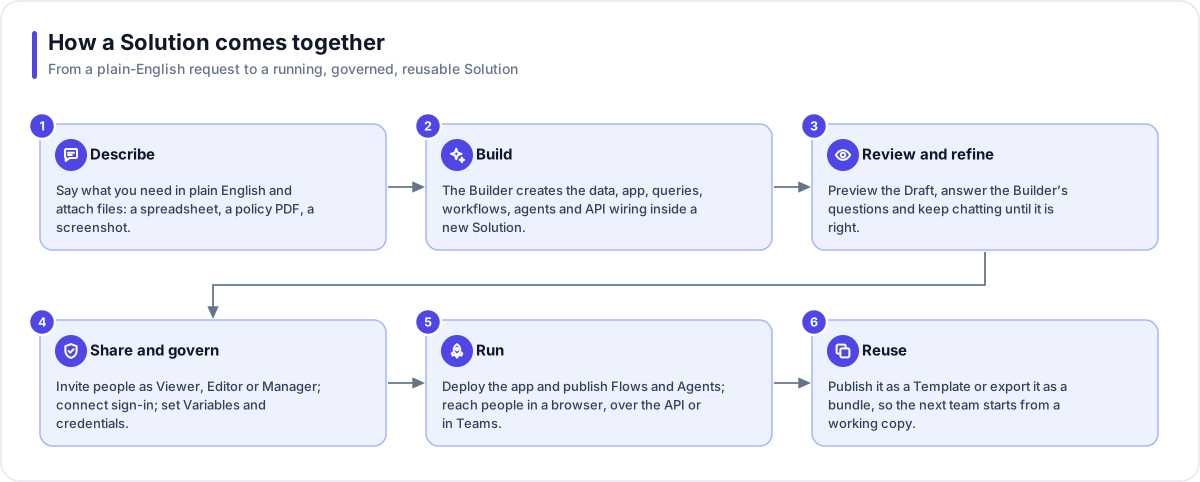
The six steps
1. Describe
Type what you need on the Studio home page and attach up to 10 files: images (up to 5 MB each), PDFs or text files (up to 10 MB each), such as a spreadsheet exported as CSV (comma-separated values), sample data or a database schema saved as a text file. A Solution is created straight away, before any AI work starts, and you are taken to the Builder as soon as your request and files have uploaded. Your request becomes the first message of the conversation, and your attachments are kept in a managed File Store for that Solution.
2. Build
The Builder decides what the Solution needs and creates each piece inside it. A request that involves data gets a Fact Base loaded with your rows (or with sample rows when you supply none) and a set of saved queries. A request that needs a screen gets a LaunchPad. Workflows become Flows, assistants become Agents, and the Flex Gateway wiring between the app and its data is created automatically. Every action appears as one line in the build log, so you can watch it work. The build runs in the background: closing the browser does not stop it.
3. Review and refine
The preview shows the app's draft. It reloads as the Builder writes the app's files, and again when the Builder finishes or replies. Keep talking to change anything: "add a chart by month", "only show open items", "rename this column". The Builder may stop to ask you a question; your answer goes in as your next message and it carries on from there. Put standing instructions in the Solution's Brief, which the Builder is given on every turn and never summarises away. Once the app exists, each read query the Builder saves is wired into the app's gateway straight away (a query that writes data is never exposed automatically). When the Builder declares the work finished, the platform wires any query still unwired and checks the app's code for calls that point at nothing; the Builder may set a code check aside when it does not apply. If you wrote "Done when" criteria, it checks the project against each one, gives the Builder one chance to fix any that are not met, and shows you the result.
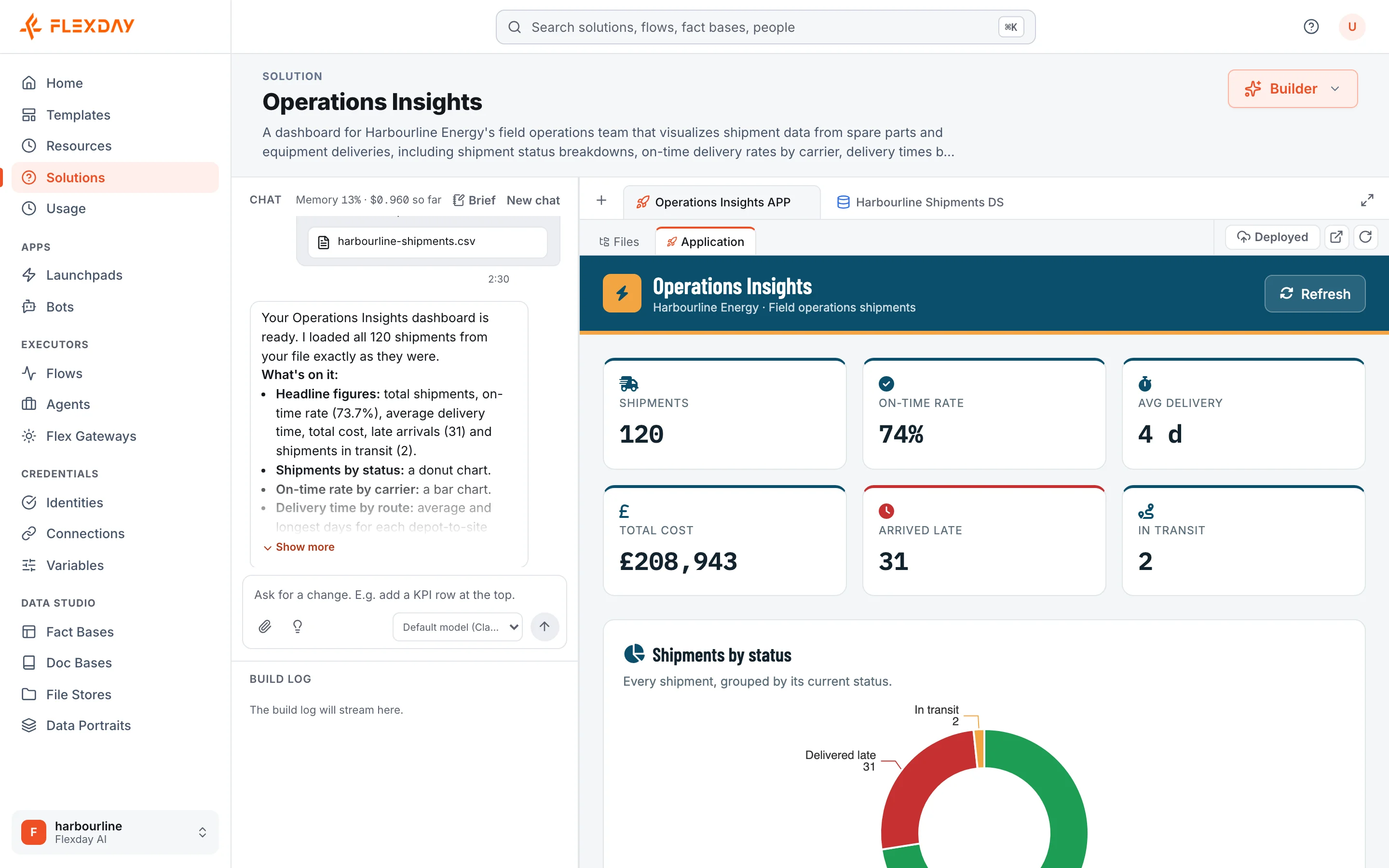
4. Share and govern
A Solution belongs to your workspace. Whoever creates it becomes its first Manager and can share it with colleagues as a Viewer (see it), an Editor (change it) or a Manager (also share it). In a workspace the platform's operators have set to Restricted (there is no Studio switch for it), these roles decide what each person can do, and each person sees only the Solutions shared with them, while owners and admins can always reach every Solution. In an Open workspace, the default, everyone in the workspace can already see every Solution and, unless their workspace role is viewer, change it; a share can raise someone, for example to Manager, but never lower them. To decide who can use the app's data and actions, attach an Identity to the gateway, for example your company's sign-in, and choose per endpoint whether a person must sign in. Anyone with the app's address can load its pages; sign-in protects what the app reads and does through the gateway.
5. Run
The first real build deploys the app for you; after that, deploying is your decision, and each deploy becomes a new numbered version. End users open the app at its own web address (on deployments set up to give each workspace its own address, one carrying your workspace's name), and it reaches its data only through the gateway. Flows run as durable background jobs and are recorded step by step. AI usage and its cost roll up per Solution, so you can see what its AI work costs.
6. Reuse
When a Solution works, publish it as a Template so others can start new Solutions from it with no AI build in between, or export the whole Solution to one bundle file and import it into another workspace or deployment. Credentials and secret values never travel in either case. A Variable lets each copy supply its own settings, such as a notification address, without editing any step.
A worked example
A regional operations lead wants a simple tracker for equipment maintenance requests.
- Describe. She types: "Build a maintenance request tracker from this file. Supervisors should see open requests by site and priority, and a button should email the assigned technician." She attaches a CSV export of last quarter's requests.
- Build. The Builder creates a Fact Base from the file, works out what each column means, creates the database schema and loads the rows. It saves queries such as open requests by site, builds a dashboard LaunchPad, creates a Flow that sends the email, and wires the button to that Flow through the gateway.
- Review and refine. In the preview she asks for a chart of requests per month and a filter by priority. She adds "show dates as day, month and year" to the Brief, so the Builder is given it on every later turn.
- Share and govern. Her workspace has been set to Restricted by the platform's operators, so she shares the Solution with a colleague as an Editor and with two supervisors as Viewers. She attaches the company's sign-in as the gateway's Identity, so only signed-in staff can see the app's data or use its button. The reply-to address on the emails becomes a Variable.
- Run. Supervisors use the app at its address. Each button press runs the published Flow, and an email that was already sent and recorded is not sent again when a step is retried. The Solution's usage page shows the AI cost of building it.
- Reuse. Another region wants the same tool. She publishes the Solution as a Template, and the other region starts a new Solution from it: the app arrives in draft, the Flow unpublished, and the company sign-in does not travel with it. They set their own Variable value, attach their own sign-in, publish the Flow, ask the Builder to wire the button to it again, review the app and deploy it.
Tip
Nothing in a Solution created from a Template starts by itself: apps arrive in draft, Flows and Agents arrive unpublished and credentials arrive blank, and its read queries answer without sign-in until you attach an Identity. An imported Solution arrives as it was exported, except that its Flows are switched off, so none starts on a schedule or an event (the app or an API call can still run a published one), any Flow step that called the Solution's own gateway by its full web address now calls the new copy, its Bots must be registered again and its credentials entered again. You review and switch on each piece.