Capabilities
Observability and insight
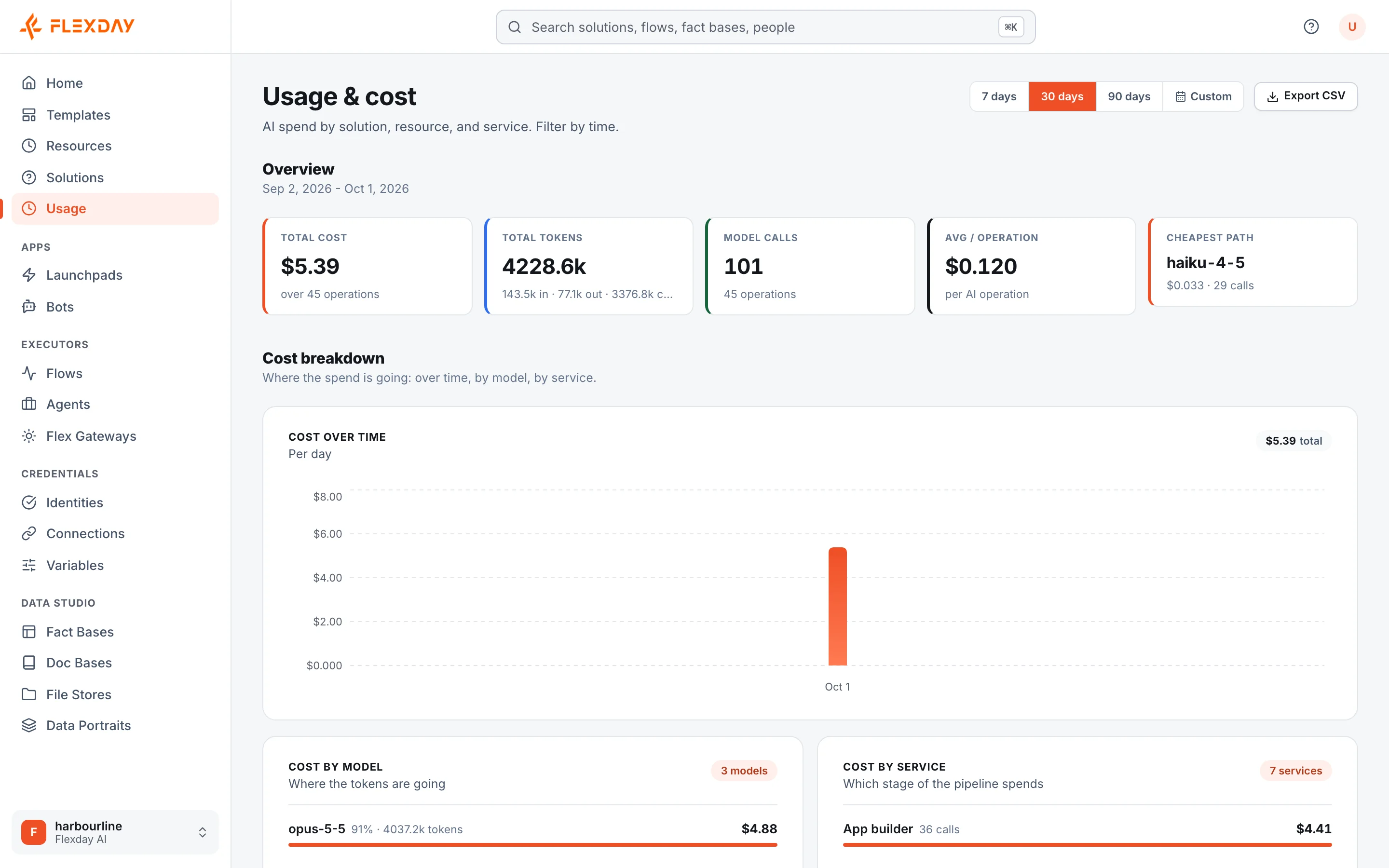
See how Solutions are used and what they cost, with usage dashboards, history, versions, run step trails, Agent analytics and global search.
- Everyone
Last reviewed
Flexday AI measures how what you build is used. Every completed model call is metered, changes to resources are recorded with the person who made them, every Flow run keeps a step-by-step trail, and every Agent has analytics of real use. Most resources have an Insights menu, though the views it holds vary by resource.
What you can do
- See what each Solution costs. Usage and AI cost roll up per Solution, including its Agents and the AI steps in its Flows.
- Find out who changed what. Lists show who last changed each item and when, and workspace admins can read the full audit trail through the platform's API. A resource's History tab lists its AI operations.
- Follow versions. A resource's Versions tab lists each deploy or publish, with a short summary of what changed and when.
- Debug a workflow. A Flow run's step trail shows every step's input, output, status and timing.
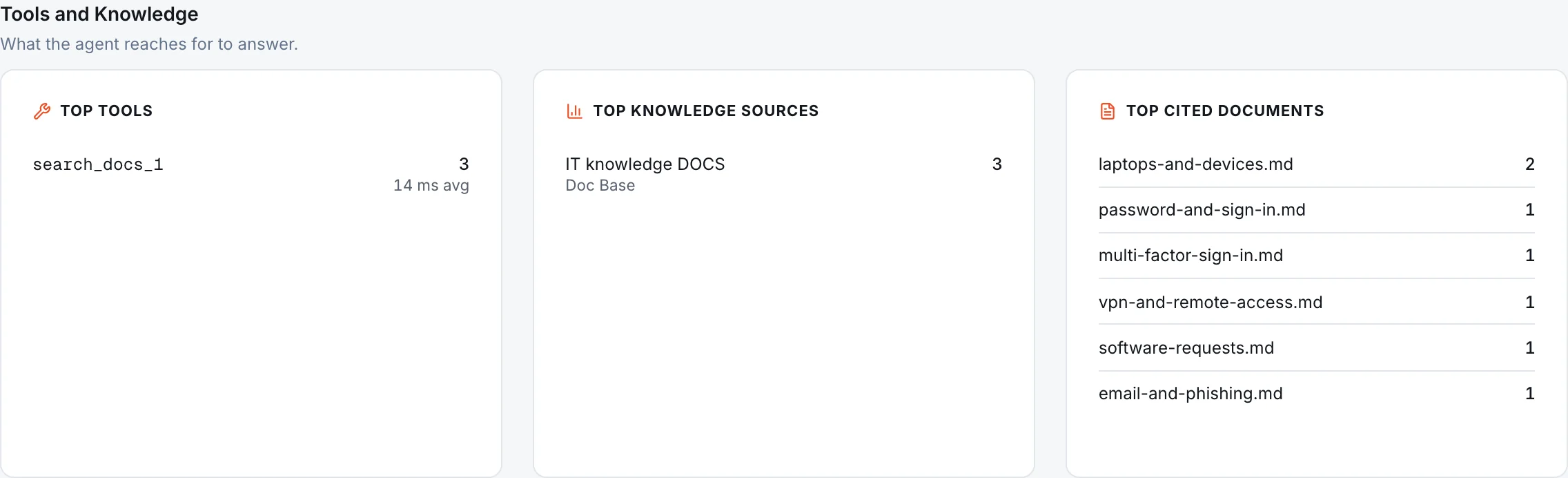
- Understand how an Agent is really used. Analytics show volumes, people, tools, cited sources, guardrail events and feedback, leaving out Playground chats and evaluation runs.
- Know who downloaded a file. Each File Store keeps an access log of downloads, previews and issued links.
- Find things. Global search finds Solutions, Templates, people and most resources inside the Solutions you can see.
How it works
| View | Where | What it shows |
|---|---|---|
| Usage | The workspace's Usage & cost page; Solutions, Fact Bases, Data Portraits, Doc Bases, LaunchPads, File Stores and Agents | Tokens and estimated cost by model, task and resource, with a CSV export |
| Analytics | Solutions, Flows, Agents | Activity over time; for Agents, Playground and evaluation conversations left out |
| History | Solutions, Templates, Fact Bases, Data Portraits, Doc Bases, File Stores, LaunchPads and Agents | AI operations: builds, inference, profiling and more |
| Versions | Apps, Flows, Agents, Fact Bases and Data Portraits | Each version, newest first; apps and Fact Bases add a draft row when changes are waiting |
| Runs and sessions | Flows and Agents | Step trails, turns, tools and citations |
| Access log | Each File Store | Downloads, previews and listings by file, caller and date |
| Build log | The Builder | One line per action the Builder took |
These views follow the same access rules as everything else. In a Restricted workspace (a setting the platform's operators apply; there is no Studio switch for it), members and viewers see usage for the Solutions shared with them; owners and admins see the whole workspace.
Example
A finance lead wants to know why the monthly AI bill rose. The workspace Usage page shows most of the increase came from one Solution. Its Usage view shows an Agent's model was changed to a larger one. The Agent's Analytics show conversations doubled after a Teams Bot went live, and the workspace's audit trail shows who changed the model and when. The team decides to keep the larger model for that Agent and switch evaluations to a cheaper judge model.
Who uses it
| Persona | What they get |
|---|---|
| Functional user | Cost and adoption of the Solutions they own |
| Builder | Run trails and build logs to see exactly what happened |
| IT and security | The audit trail and file access log for reviews and investigations |
| Agent owner | Real-use analytics and feedback to improve instructions and knowledge |