Capabilities
Workflow automation
Automate business processes with visual workflows that run on a schedule, a webhook, an event or a button, across data, email, files and business apps.
- Everyone
Last reviewed
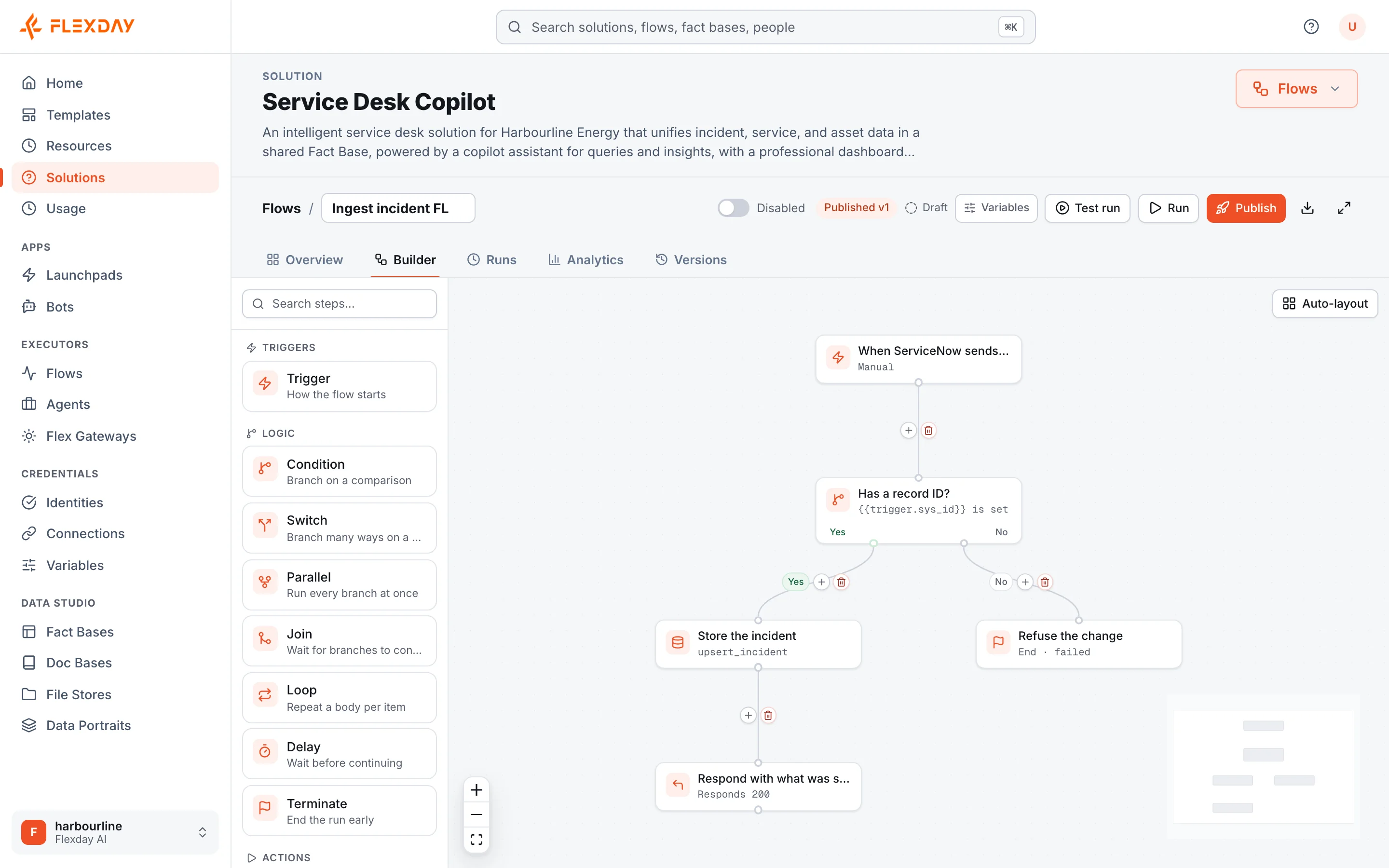
When you know the steps of a process, a Flow runs them for you: query some data, decide what to do, call a system, email the right person, wait for an answer, carry on. You lay the steps out on a visual canvas, publish, and the Flow runs as a durable background job with every step recorded. It is the dependable, repeatable half of automation; AI agents are the half where the model decides the path, and the two work together.
What you can do
- Run a process on a timetable. A schedule trigger runs a Flow on a cron timetable in your own time zone, such as every weekday at 07:00 Europe/London.
- React to other systems. A webhook trigger gives each Flow an unguessable address that outside systems post signed requests to; a repeat delivery that carries the same idempotency key is recognised, and requests are rate limited.
- React to what happens in your Solution. An event trigger fires on an in-app event in the same Solution.
- Put a button in your app that does real work. A generated app's action buttons run published Flows, and a Flow can return a result to the page.
- Email the right people. Send from Flexday AI's own sender, where your deployment offers it, or through your own mail server, with attachments, under per-Solution rules: a send rate limit, a recipient allow-list and an option to keep message bodies out of run history.
- Work with files. List, read, write, copy, delete, fetch a web address into a File Store, or send a file to another system. Files move between steps as references; a Read file step can also bring a capped amount of a file's content into the run.
- Ask a person and wait. When a person started the run, from an app, an Agent conversation or a Studio test, a Form step shows a validated form, parks the run without holding any capacity until someone answers or a deadline passes, then continues with the answers. A scheduled, webhook or event run that reaches a Form step stops with an error. A ViewPort step shows a document and carries on.
- Act in your business applications. The Integration step raises, finds, updates, comments on, assigns and resolves ServiceNow incidents, and looks up users and groups, through a saved Connection.
- Use AI where it helps. An AI step generates or summarises text, and a Flow can run a published Agent for one turn.
- Give people access from their sign-in. A Set access tags step sets a signed-in person's access tags from their groups or from a query, when an Identity runs the Flow at sign-in or for its existing members.
- Keep settings out of the steps. A Flow reads Solution Variables by key, so an address or a threshold is set once, not in every step.
How it works
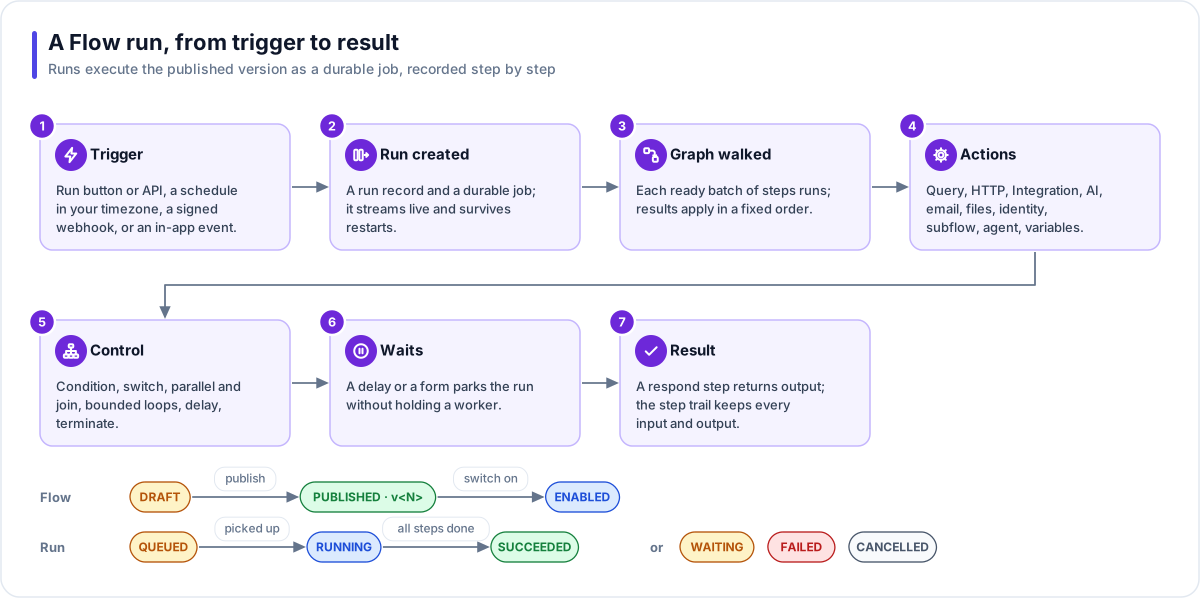
- One trigger, then steps. Every Flow has exactly one trigger (manual, schedule, webhook or event) followed by actions and control steps: condition, switch, parallel and join, bounded loops, durable delays and terminate.
- Draft, publish, enable. You edit a draft; publishing creates a numbered version, and live runs use a published version, while a test run from the Studio runs your draft. A schedule or event fires only when the Flow is both published and switched on, which is a separate, deliberate step.
- Per-step policies. Most action steps have their own retry, timeout and on-failure settings; a Form step has a deadline instead. A step tries at most 10 times, each attempt can be given at most 60 seconds, and the wait before a retry starts at no more than 60 seconds and doubles each time.
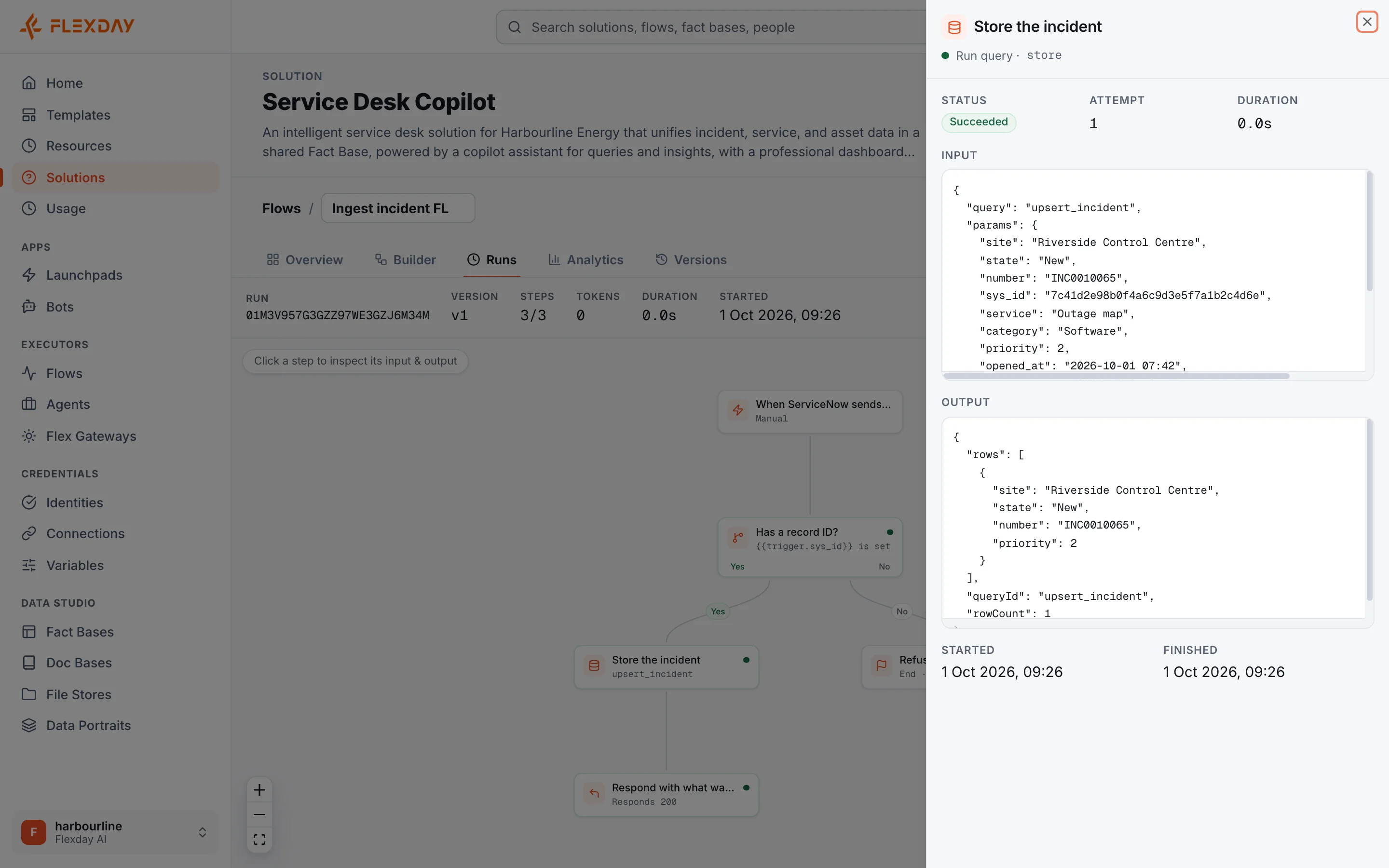
- A full trail. Every run records each step's input, output, status and duration, streams live in the Studio, and can be cancelled or retried. Analytics summarise success rate, duration and volume across all runs.
Reliable by design
A background job can be retried after a restart, so every step that touches the outside world is protected. Each email, Teams message, non-read HTTP call, application write, file send, and file fetch that posts data claims a unique key, derived from the run, the step and the loop iteration, before it acts. A step that already succeeded is not repeated when it is retried. A send that fails with an unclear outcome may be sent again, so a duplicate is rare but possible. If a write to an application is cut off and cannot be checked, the step stops as in doubt rather than risk sending it twice.
Tip
Name a duplicate-prevention field on an application Connection. Then an interrupted create can be checked: if the record exists the step succeeds, and if not it is safe to retry.
Waiting never costs capacity. A delay or an open form parks the run and releases the worker, and the run survives restarts. Everything a Flow references must be in the same Solution; this is checked when you publish and again at run time.
Example
A manufacturer's plant maintenance team connects its machine-monitoring system to a Flow through a signed webhook. When a fault arrives, a condition step checks its severity; serious faults become a ServiceNow incident through the Integration step, and an email tells the shift supervisor, quoting the new ticket number and linking straight to it. If the monitoring system retries a delivery with the same idempotency key, the repeat is recognised and no second ticket is raised. A second, scheduled Flow runs each morning, finds the plant's open incidents in ServiceNow, has an AI step summarise them and emails the summary to the plant manager.
Who uses it
| Persona | How they use it |
|---|---|
| Business user | Describes a routine to the Builder and gets a Flow to review and switch on |
| Analyst | Schedules data refreshes and summary emails from saved queries |
| Developer | Wires webhooks, HTTP calls and Integration steps, and returns results to apps |
| IT and security | Relies on published versions, per-Solution email rules and keyed outside effects |
| Functional user | Sees the routine work of their process run on time, with a trail of every run |