Components
Bot
One published Agent inside Microsoft Teams, answering people where they already work and messaging them first when a Flow or Agent needs to.
- Everyone
- Technical
Last reviewed
A Bot puts one published Agent inside Microsoft Teams, so people can talk to it where they already work. A Teams message becomes an ordinary Agent turn, with the same instructions, tools, knowledge, guardrails and budgets, and the answer comes back into the chat. A Bot can also message people first, when a Flow or an Agent has something to tell them.
Note
In one sentence: a Bot binds one published Agent to one messaging platform, Microsoft Teams today, with consent and allowances on every message it sends first.
Why it matters
- Meet people where they are. No new app to open and no new sign-in: people chat in Teams.
- One assistant, one set of rules. The Agent behind the Bot is the same one that answers in an app or over the API, so behaviour and guardrails do not drift.
- Respectful outreach. A person can type STOP to opt out of messages the Bot starts. They still get answers when they ask.
- Simple to set up. In a deployment configured for it, Flexday AI creates and holds the Microsoft registration for you, and an administrator can publish the Bot to your organisation's Teams catalogue in one step.
Key concepts
| Term | What it means |
|---|---|
| Registration mode | Managed (Flexday AI creates and holds the Microsoft registration) or bring your own (you paste your own app ID and secret). |
| Webhook token | The secret inside the address Microsoft posts to. Stored only as a fingerprint and rotatable; a rotated address stops working at once. |
| Conversation | A durable address for one person in one thread, captured the first time they interact. |
| Consent | Whether the platform may message that conversation first: implicit once they have talked, granted by START, revoked by STOP or by removing the app. |
| Delivery | One record per outbound attempt, sent or failed. |
| Go live | The platform switch that turns inbound messages on. Publishing to your Teams catalogue, or uploading the package, is distribution. |
How it works
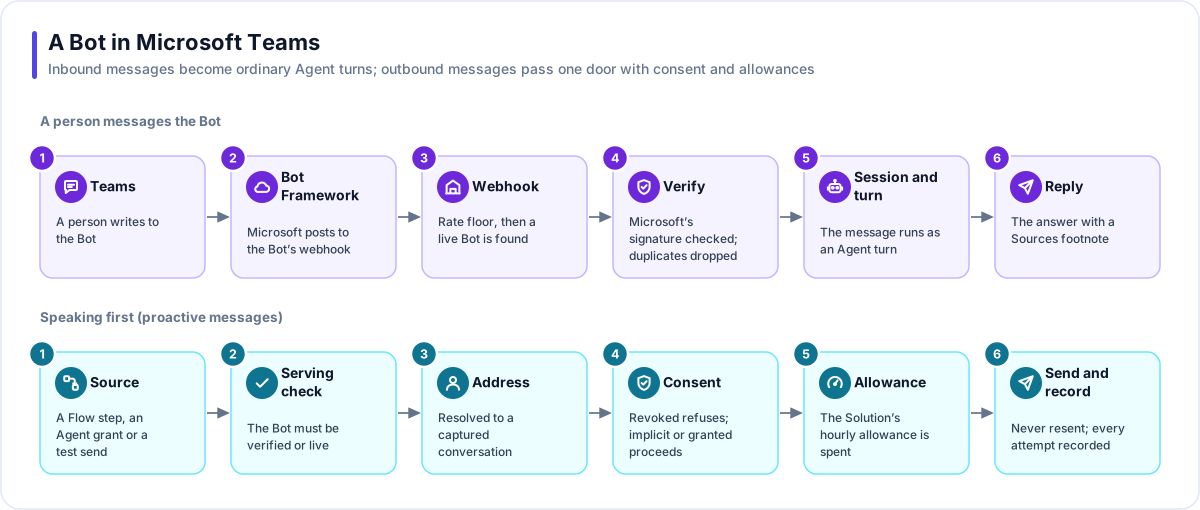
A person messages the Bot
- Teams. A person writes to the Bot in a personal chat, a group chat or a channel.
- Bot Framework. Microsoft posts the message to the Bot's webhook on the apps address.
- Webhook. A per-address rate floor runs first, then the token finds a live Bot. An unknown, rotated or not-live token gets the same "unknown channel" answer.
- Verify. Microsoft's signature is checked against this Bot's registration, and a redelivered message is dropped.
- Session and turn. The sender's conversation continues if it is still live, with the same Agent and the same person. The message runs as a durable Agent turn while Teams shows the typing indicator.
- Reply. The answer, with a Sources footnote naming the documents it used, a question if the Agent needs more information, or a short apology with a reference if something failed.
The person's audiences are worked out again on every message, so a change in what they may see applies the next time they write.
Speaking first
- Source. A Send channel message step in a Flow, an Agent's channel-message grant (one message per turn), or a test send from Setup.
- Serving check. The Bot must be verified or live.
- Address. A conversation ID, a Teams user ID or an email address is resolved to a captured conversation. A person the Bot has never met has no address yet.
- Consent. Implicit or granted proceeds; revoked refuses.
- Allowance. The Solution's hourly allowance is spent. Once it is used up, the send is refused rather than retried.
- Send and record. A send that already succeeded is never repeated, and a delivery record is written for success and failure alike.
Status
A Bot moves from Draft to Verified (its credentials are proved) to Live (inbound messages switched on), and can be Disabled. A verified Bot can send but answers nobody. Going live needs the Agent published and enabled, and not using forms.
Getting a Bot in front of people
| Step | What happens |
|---|---|
| Register | Managed: Flexday AI provisions the Microsoft registration. Bring your own: paste your app ID and secret and point Microsoft at the webhook address. |
| Verify and go live | Verify proves the credentials. Go live switches inbound messages on. |
| Publish or upload | Publish to your organisation's Teams catalogue (an administrator signs in each time and nothing is stored), or download the package and upload it in the Teams admin centre. |
| Brand | Name, descriptions, accent colour and icons are checked against Microsoft's limits when saved. Each accepted publish advances the package version. |
What a Teams conversation can and cannot do
- Text only. No forms, no file upload or download, no streaming: the answer arrives complete.
- Long answers are split into several messages at paragraph or line breaks, never inside a code block.
- Citations are names, not links, because a cited document sits behind the platform's own access rules.
- STOP and START count only as a whole message in a one-to-one chat, so "stop the nightly report" is a question for the Agent and one person in a group cannot silence the Bot for everyone.
Works with
- Agent: one published, enabled Agent in the same Solution, bound directly.
- Flow: the Send channel message step messages a person or a conversation.
- File Store: a managed store holds the Bot's icons.
- LaunchPad: a Bot and an app can front the same Agent.
Governance and limits
| Area | What applies |
|---|---|
| Boundary | One Bot, one Agent, one Solution. Credentials are sealed and never returned. |
| Access | Inbound messages need a live Bot and a valid Microsoft signature. Only personal chats can change consent. |
| Consent | Consent governs outreach, never a reply. STOP and UNSUBSCRIBE revoke; START and RESUME grant; removing the app revokes. |
| Safety | Going live refuses an Agent that uses forms. A second message while an answer is in progress is dropped. Teams publishing is authorised by an administrator each time and nothing is stored. |
| Limits | Inbound: 120 messages per Bot per minute. Outbound: 60 messages per Solution per hour, shared by every sender. Teams is the available channel. |